Creating a post is not the same as scheduling or publishing it.
Here's how it works in Latitude.
Quick checklist (start here)
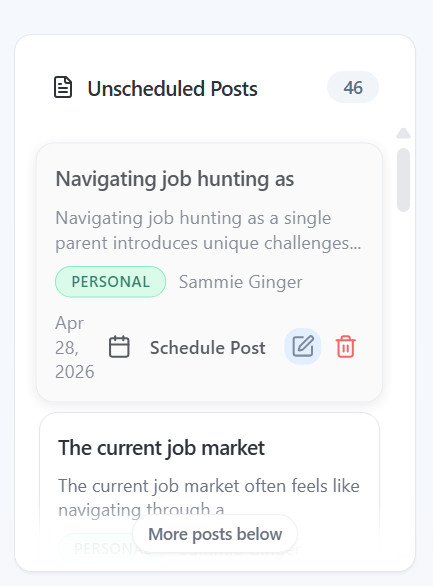
Is your post still in Unscheduled Posts? -> it's a draft
- Do you see it on the calendar at a future time? -> it's scheduled
- Did you get a confirmation notification after scheduling or posting?
- Is the post a darker shade on the calendar? -> it has already been posted (or attempted)
The 3 post states (simple version)
Draft = not scheduled
You created or saved a post
- It has no date or time assigned
- It will not publish
Where to find it:
Unscheduled Posts (Scheduler)
- Saved Posts (Content Creation)
Scheduled = set to publish later
You chose a date and time
The post appears on the calendar in the future
How to confirm it worked:
You'll see a notification in the top-right
The post appears on the calendar at the scheduled time
Published = live on LinkedIn (or attempted)
The post has already reached its scheduled time
Or you posted it directly to LinkedIn
What you'll see:
A confirmation notification when posted directly
The post appears on the calendar in a darker shade
How to actually schedule a post
There are two steps - creating alone isn't enough.
To schedule:
- Go to Scheduler
- Find your post in Unscheduled Posts
- Drag it onto the calendar
- Select a date and time
Once scheduled:
- You'll get a confirmation notification
The post will appear on the calendar
What if I posted directly instead?
If you clicked Post to LinkedIn:
The post is published immediately
You'll get a confirmation notification
- It will appear on the calendar in a darker shade
No scheduling needed.
Where to see your scheduled posts
Go to Scheduler:
- Calendar view -> all scheduled posts
- Upcoming Posts -> quick list of what's coming next
How to edit a scheduled post
Scheduled posts can't be edited directly on the calendar.
To edit:
- Go to Scheduler
- Right-click the post on the calendar
- Select Unschedule Post
- Find it in Unscheduled Posts
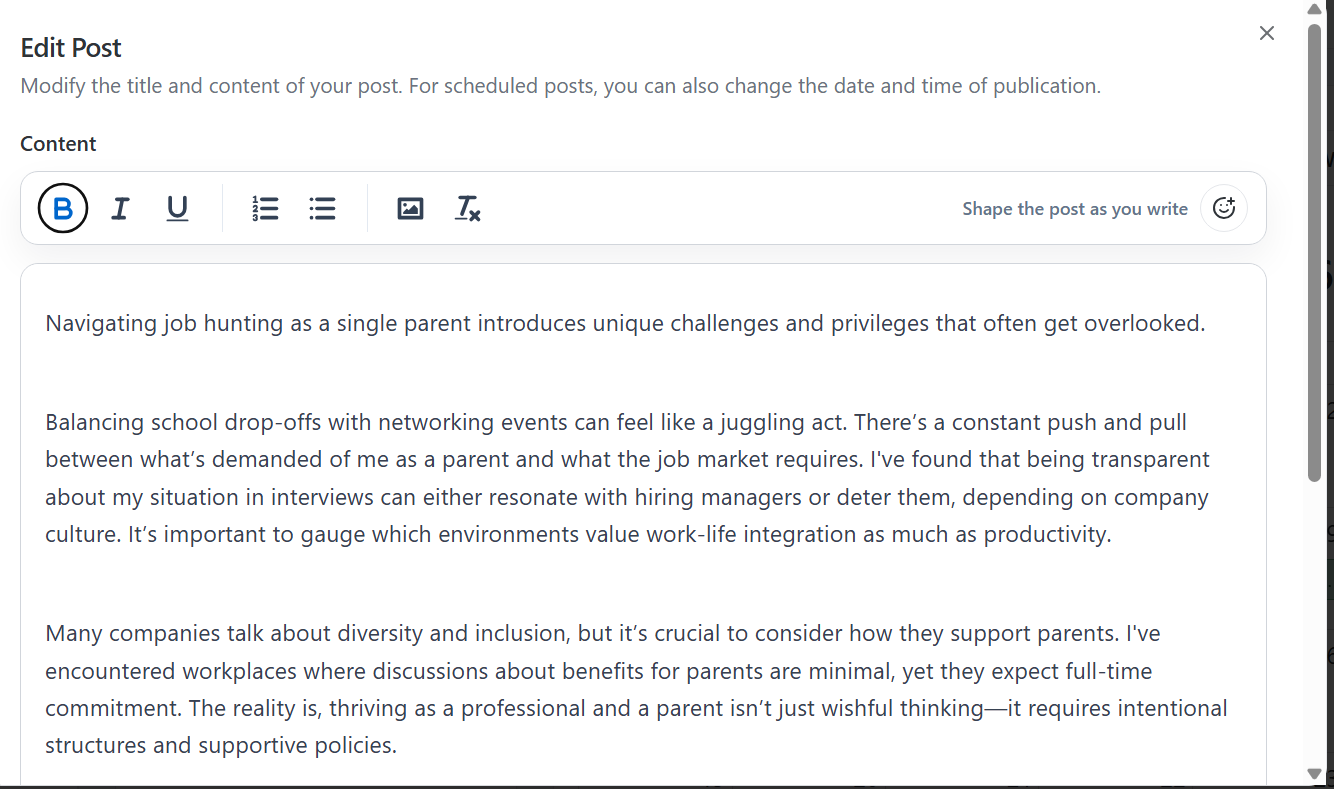
- Click the edit icon
- Make changes and reschedule it
The one thing to remember
If your post didn't go out, it was almost always:
Created, but never scheduled or published
Once you know where to look, it's a quick fix.
If something still doesn't look right, reach out to support and we'll help you sort it out fast.
Screenshots if needed