
Writing a useful LinkedIn post takes judgment. You have to decide what is worth saying, how to say it and whether you want your name on it. Moving that work between tools and people should be straightforward.
A post might start in ChatGPT or Claude. Someone on your team might help shape it. You might prefer writing directly inside LinkedIn. In each case, the work still needs to reach the right account, pass through the right people and be ready when you choose to publish.
That is the thread running through Latitude 3.0.
Why this release, now
Customer feedback and months of development shaped this release. As we prepared 3.0, we reconciled that development with what was running in production and brought the work together. Some improvements had already reached customers. Others needed a clear path from the product into the way people actually use it.
The result is a release centered on three parts of the job: working with an AI assistant, working with other people and working inside LinkedIn. Alongside them are smaller improvements to the daily tasks of editing, scheduling and understanding results.
Those smaller changes matter. A good new connection is more useful when the draft you create is easy to find, review and keep working on.
Keep the conversation, save the work
If you already work through ideas in ChatGPT or Claude, you can now connect a supported client to Latitude and ask it to save the version you approve as a draft.
Here is an example to try after your connection is set up:
“Turn this idea into a LinkedIn post: a useful weekly planning meeting ends with a clear owner and a next step for every decision. Show me the draft first. After I approve it, save it as an unscheduled draft in the Latitude account I select.”
Stay in the conversation while you work on the wording. Ask for revisions. When it says what you want it to say, approve that version and the account where it should be saved.
Open the saved draft in Latitude. Check that it belongs to the account you selected, contains the wording you approved and has no scheduled publication time. From there, you can edit it, involve an authorized teammate or decide when it should go out.
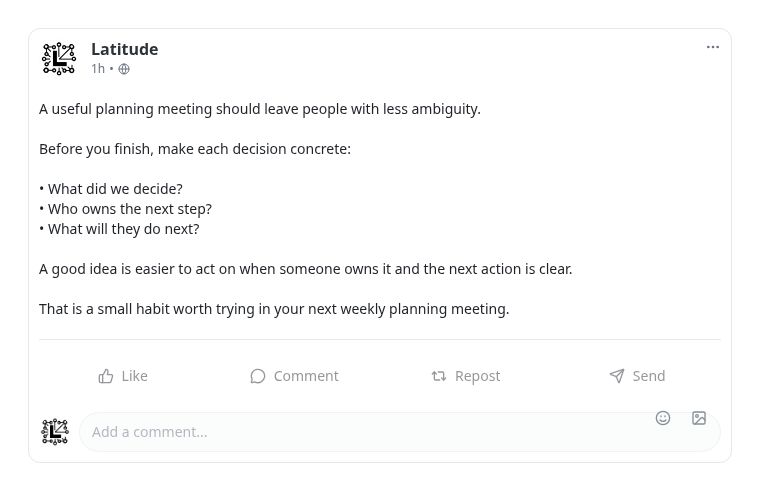
Review the wording before you publish The same weekly-planning example, shown in Latitude’s current post preview with the original company logo. Product interface · sample data
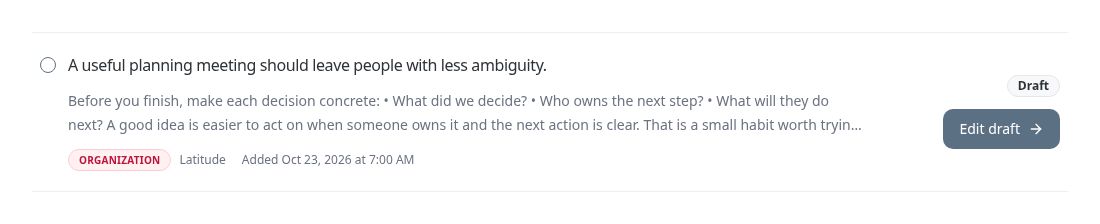
Check the account and draft status The matching sample post in Content Library, with the Latitude account badge and Draft status visible. Product interface · sample data
This gives the conversation a useful destination. The draft becomes part of the content you manage in Latitude, with an account and a next step you can check.
The connection uses MCP with OAuth sign-in. You choose which accounts and actions the assistant can use. You can review those permissions and revoke access in Connected apps. Drafting and scheduling are separate permissions, so saving the first draft does not need to include a publishing decision.
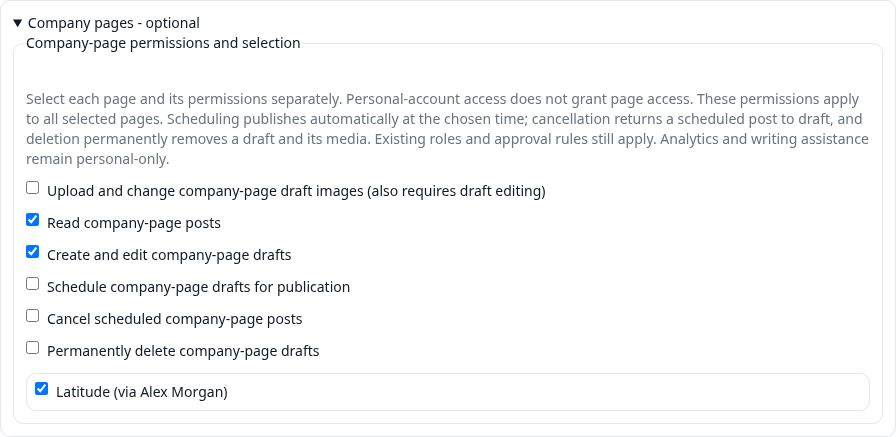
Choose the Page and the actions This example grants reading and draft editing for the Latitude Company Page. Scheduling, deletion and image access remain separate. Product interface · sample data
Give each person the access their work needs
Consider an executive who works with a marketing lead and a colleague responsible for reporting. The marketer prepares a draft. The executive reviews the wording and posts from their profile. The colleague looks at the results.
These are different responsibilities. Latitude 3.0 separates posting-license assignment from the permissions people need to help with the work. Non-posting administration, drafting, review, analytics and imports do not consume posting capacity. The identities that post use that capacity.
In that example, the marketer needs access to help with content. The colleague needs access to the relevant results. The executive’s posting identity needs posting capacity. Account permissions and license assignments answer different questions, and an owner or administrator manages the assignments.
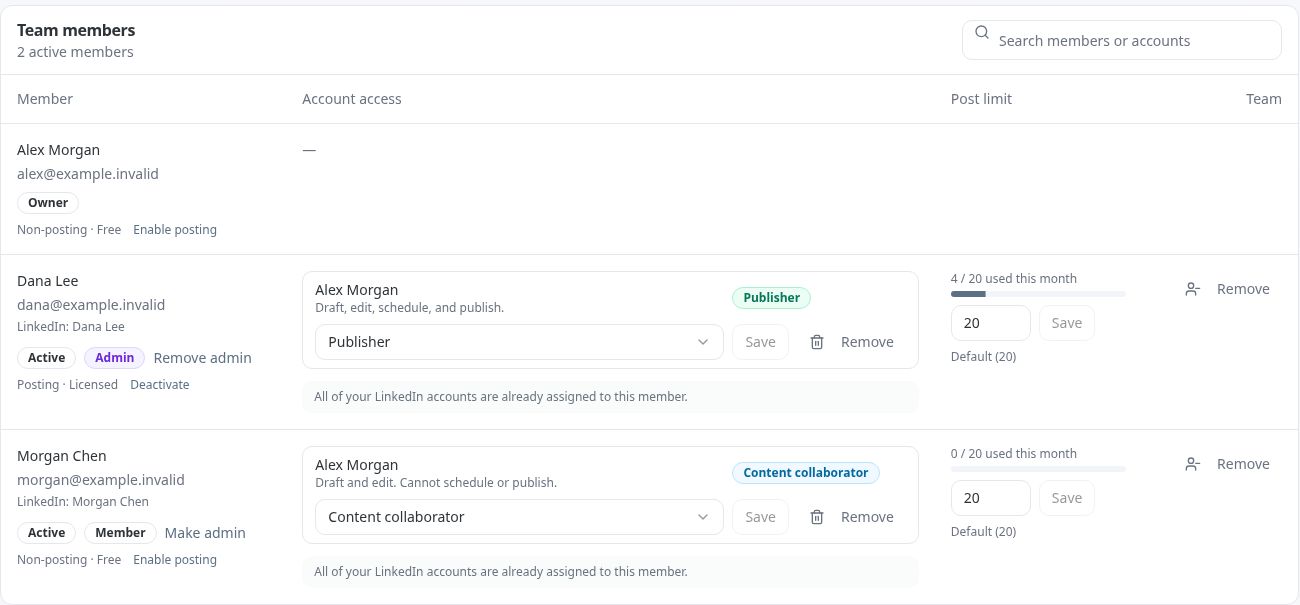
Give each teammate the access they need The example team has a licensed publisher and a content collaborator who can help with drafts without posting. Workspace roles, account access and posting licenses remain separate. Actual product component · sample data
A helper also does not need to connect a personal LinkedIn profile simply to manage authorized team work. Start with what each person needs to do, then give them the appropriate access.
Keep LinkedIn as your writing space
For people who prefer LinkedIn’s editor, the Latitude for Chrome pilot connects supported native-editor workflows and post tracking back to Latitude.
The extension gives you controls for your editor, tracking and publishing. Use the supported Post via Latitude action deliberately when you are ready. Existing opt-outs are preserved, and turning tracking off also disables native publishing through the extension.
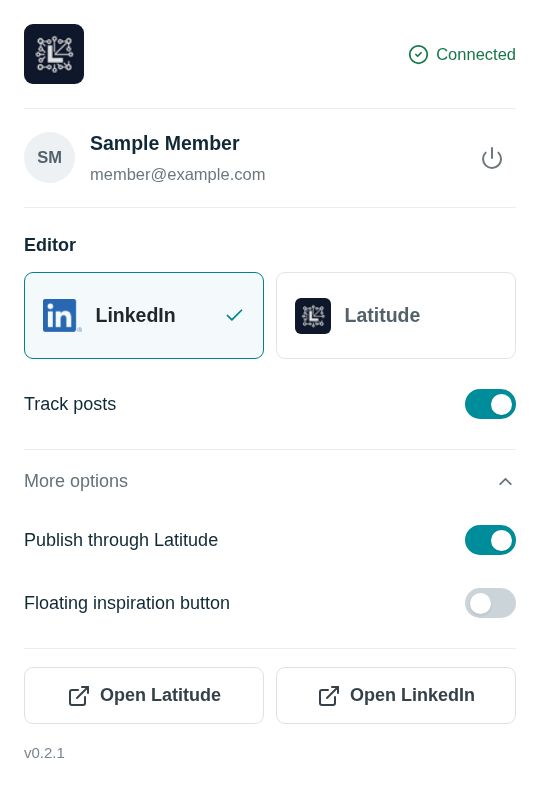
Choose your editor. Control tracking and publishing. The Latitude for Chrome pilot shows LinkedIn selected as the editor, with tracking and publishing controls visible. Actual extension component with a sample account; available to enabled accounts. Actual product component · sample data
The pilot gives us a focused way to support this workflow while keeping its limits clear. It uses a manual desktop Chrome installation for enabled accounts. The setup guide starts with personal-profile text and image posts. It does not promise capture from every device, browser or format, or an import of your entire history.
Improve the everyday work, too
We have also brought together improvements that matter whether or not you connect an assistant.
You can schedule eligible approved drafts from Content Library. Editing and rescheduling improvements help keep the intended post and its author and reviewer access together. Original PDF filenames remain readable as you save, reopen, edit and schedule. Valid calendar moves that leave the content unchanged preserve its saved assessment.
Analytics puts the available results first, with data notes nearby. Known totals can remain visible when another metric is unavailable. That makes it easier to distinguish missing information from a measured zero.
These changes support the same goal: help people keep moving through the work they came to do.
Availability and the first step
MCP access is available by request for eligible accounts and supported ChatGPT or Claude clients. Actions depend on account access and granted permissions. Scheduling requires a confirmed future time; MCP has no immediate-publish action. Analytics and AI-assistance tools currently focus on eligible personal accounts, so check the workflow you need for a Company Page with support. Existing token-based connections remain available for their supported clients.
Start with one idea and one unscheduled draft. The connection guide covers setup and permissions. If you need access, email support@get-latitude.com with the assistant you use and whether you want to work on a personal profile or Company Page. Connect Latitude to your AI assistant
If your priority is collaboration, review the people who help with your content using the team guide: Manage team access and posting licenses
For the Chrome pilot, confirm your account is enabled and follow the current installation guide: Set up Latitude for Chrome
Latitude 3.0 brings more of the work around a post into the same process. You keep the judgment about what to say and when to publish it.