Quick checklist (start here)
Are you logged into the correct LinkedIn account in your browser - or logged out of linkedin.com if you're trying to add an additional account?
- Did you click Allow on the LinkedIn permission screen?
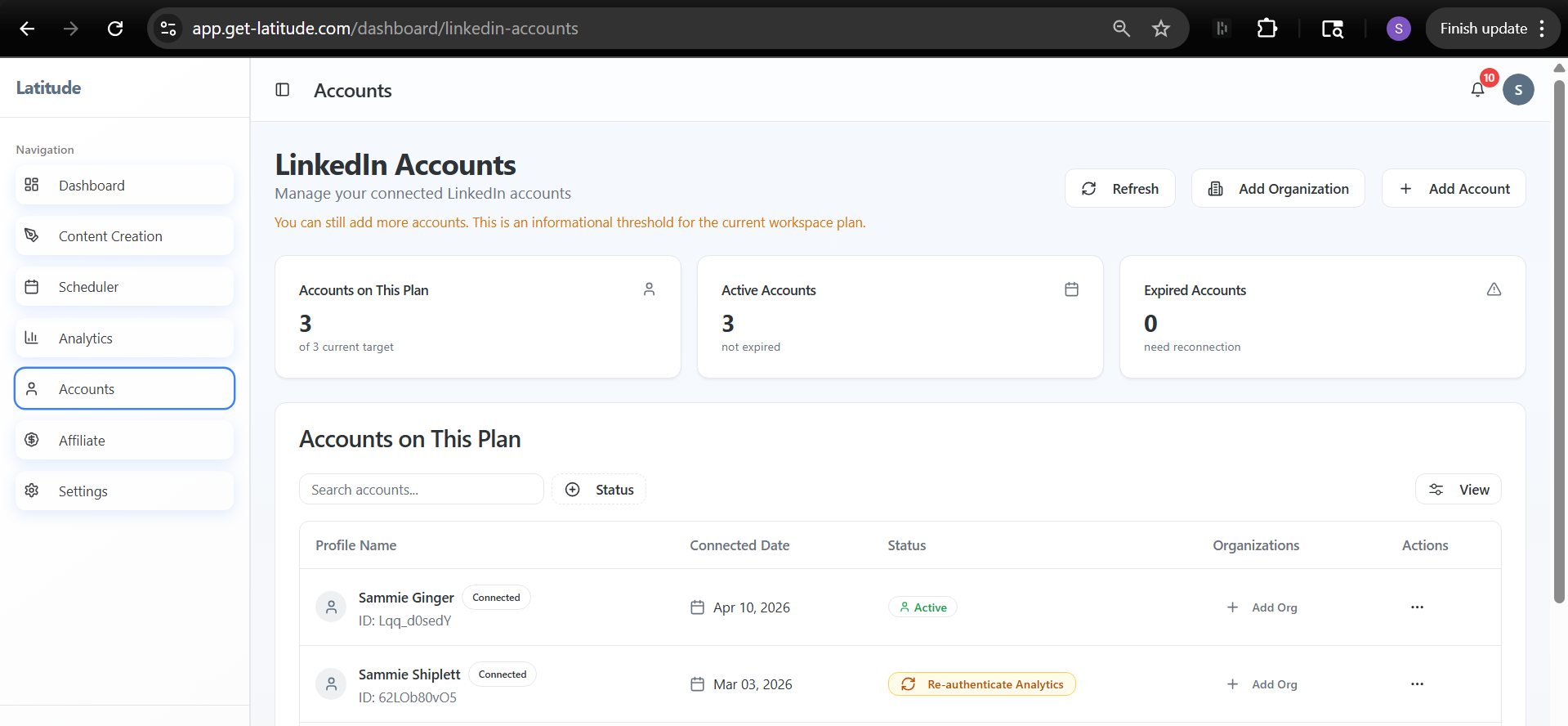
- Does the account show up under Accounts as "Connected" and "Active"?
- In the Analytics tab, did you select the correct account from the top-right dropdown before enabling analytics?
How to connect your LinkedIn account
You can connect your account in a few different ways:
- During onboarding (first login)
- When signing up with LinkedIn credentials
- From Accounts -> Add Account
What to expect:
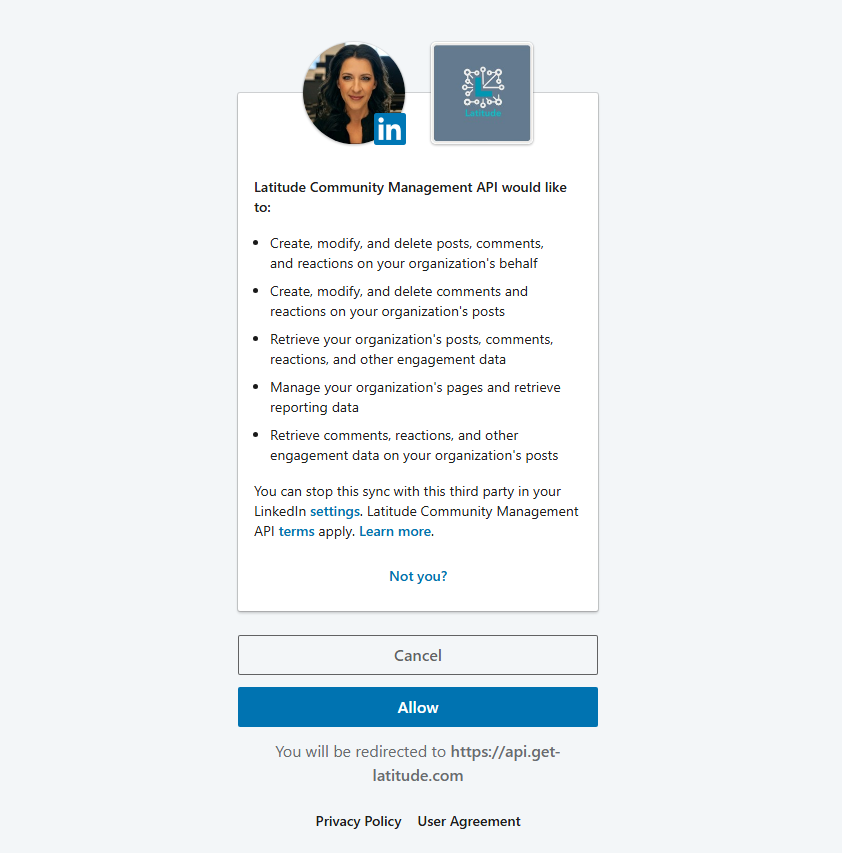
You'll be redirected to LinkedIn
- You'll see a permissions screen
- Click Allow
- You'll be returned to Latitude
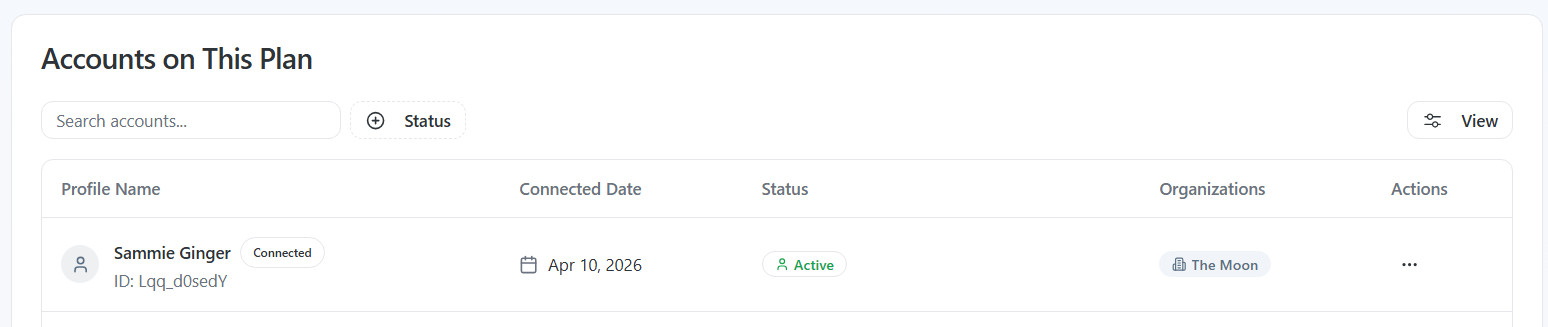
Once connected, your account will appear under Accounts with:
- Your profile name
- A Connected label
- An Active status
How to enable analytics (separate step)
Connecting your account allows posting. Analytics requires a separate authorization.
To enable analytics:
- Go to Analytics
- Select the correct account from the top-right dropdown
- Click Enable Analytics
- Log in with the LinkedIn account that matches the selected profile
Important:
- You must have a LinkedIn account connected first
The account selected in Latitude must match the LinkedIn account you authenticate with
Most common issue: LinkedIn session mismatch
This is the #1 reason connections fail.
LinkedIn uses your current browser session - it won't always prompt you to switch accounts.
What happens:
You try to connect or enable analytics for one account
- But your browser is logged into a different LinkedIn account
- LinkedIn either connects the wrong account or returns an error
How to fix it:
Go to linkedin.com
- Log out of any active session (recommended when adding additional accounts)
- Start the connection again in Latitude
- Log in with the correct account when prompted
If you see a generic error
Sometimes LinkedIn returns a vague or blank error.
This usually means:
- Your session expired
- Your browser was logged into the wrong account
The OAuth flow was interrupted
How to fix it:
Log out of LinkedIn
- Close and reopen the Latitude tab
- Try again
If your account connects but something seems off
Check the Accounts tab:
- Is the correct profile name listed?
- Does it show Connected and Active?
- Are multiple accounts listed and clearly labeled?
If the wrong account was connected:
Log out of LinkedIn and reconnect using the correct credentials
Connecting organizations (company pages)
If you manage a company page, you can connect it after your account is linked.
How to connect an organization:
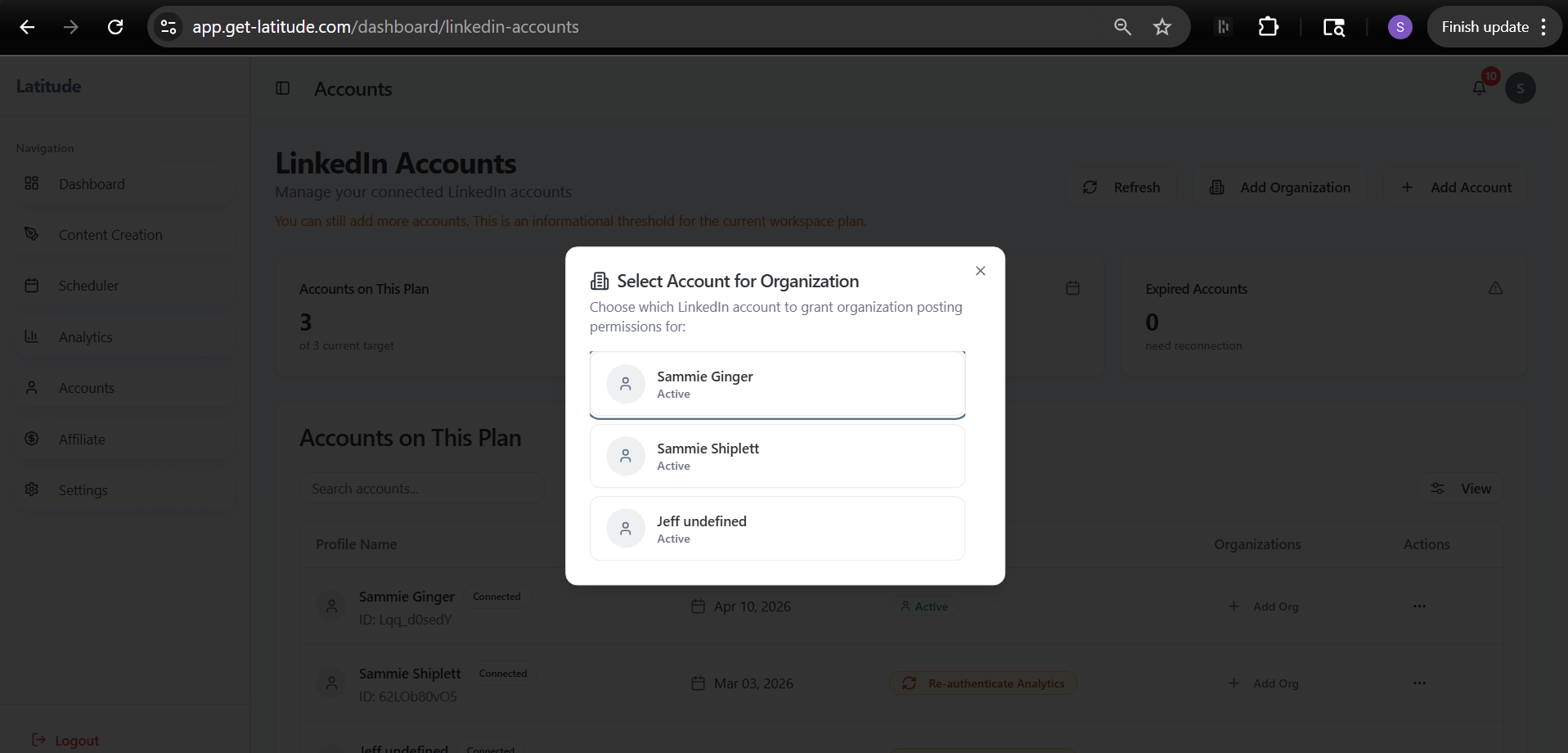
Go to Accounts
- Click Add Organization
- Select the LinkedIn account that manages the page
- Click Allow on the LinkedIn permissions screen
- Confirm the organization appears under your account
Still having trouble?
If your account isn't showing as connected after completing these steps, it's almost always a LinkedIn session issue.
Start fresh:
- Log out of LinkedIn
- Return to Latitude
- Try again from Accounts -> Add Account
If that doesn't fix it, support can help you get unstuck quickly.
Supporting Screenshots if needed